
You built your website. You published your pages. You waited.
And nothing.
No visitors from Google. No rankings. No traffic. Just silence.
This is one of the most frustrating experiences for any website owner — and it happens more often than you think. The good news is there are specific reasons why a website does not show on Google and every single one of them is fixable.
This guide covers every common reason with exactly what to do about each one.
Check why your site is not ranking
Run a free visibility audit and see exactly what is blocking your site from Google.
Open resource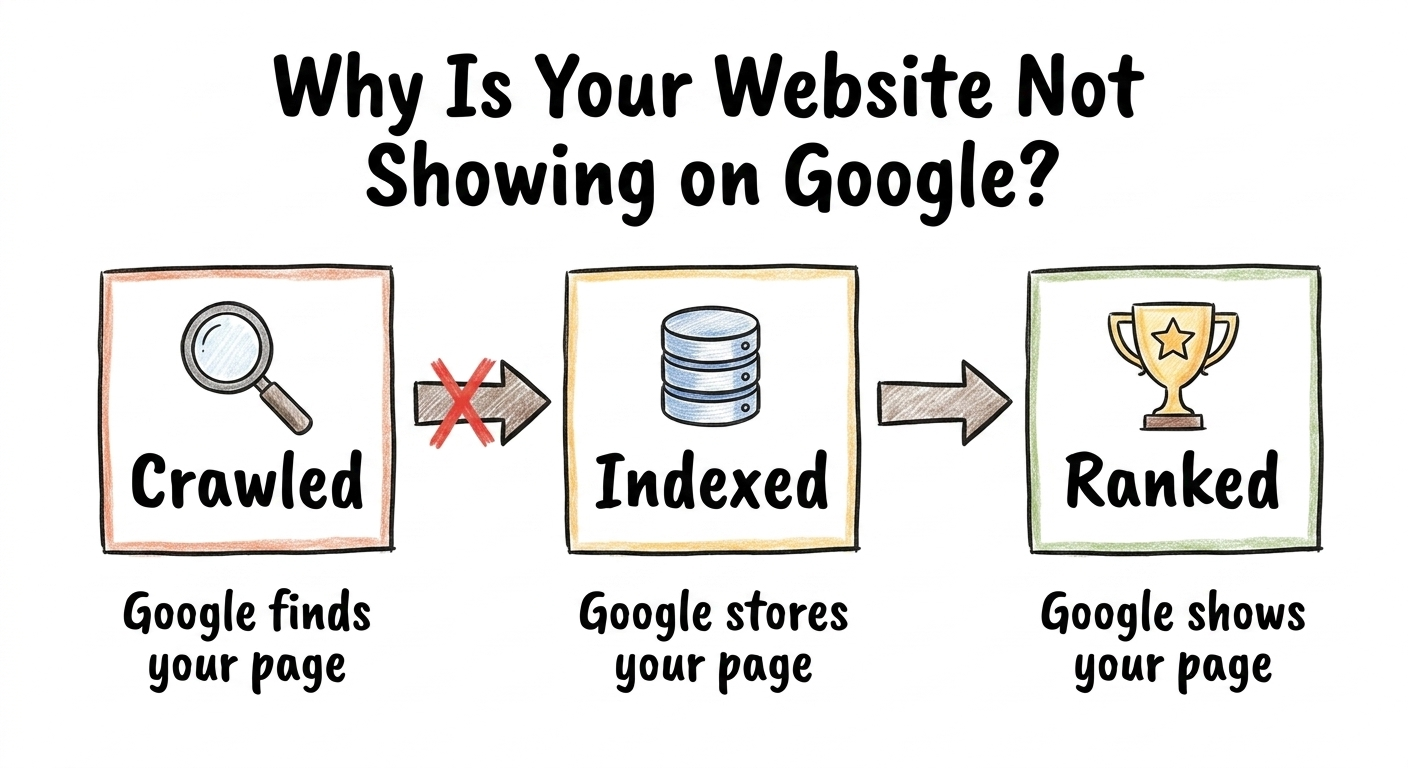
First — how does Google actually find websites?
Before fixing the problem it helps to understand how Google works.
Google uses automated programs called crawlers or bots that browse the internet following links from page to page. When a crawler finds your page it reads the content and adds it to Google's index — a massive database of web pages. When someone searches for something Google looks through its index and shows the most relevant results.
For your website to show on Google three things need to happen in order:
Your site needs to be crawled — Google's bot needs to find and visit your pages.
Your site needs to be indexed — Google needs to store your pages in its database.
Your site needs to rank — Google needs to decide your pages are relevant enough to show for specific searches.
If your site is not showing on Google it is failing at one of these three stages. The fix depends on which stage is the problem.
Reason 1 — Your site is too new
If you launched your website recently this is the most likely reason. Google does not index new websites instantly. It can take anywhere from a few days to several weeks for Google to discover and index a brand new site.
How to check: go to Google and search site:yourwebsite.com — if no results appear your site is not indexed yet.
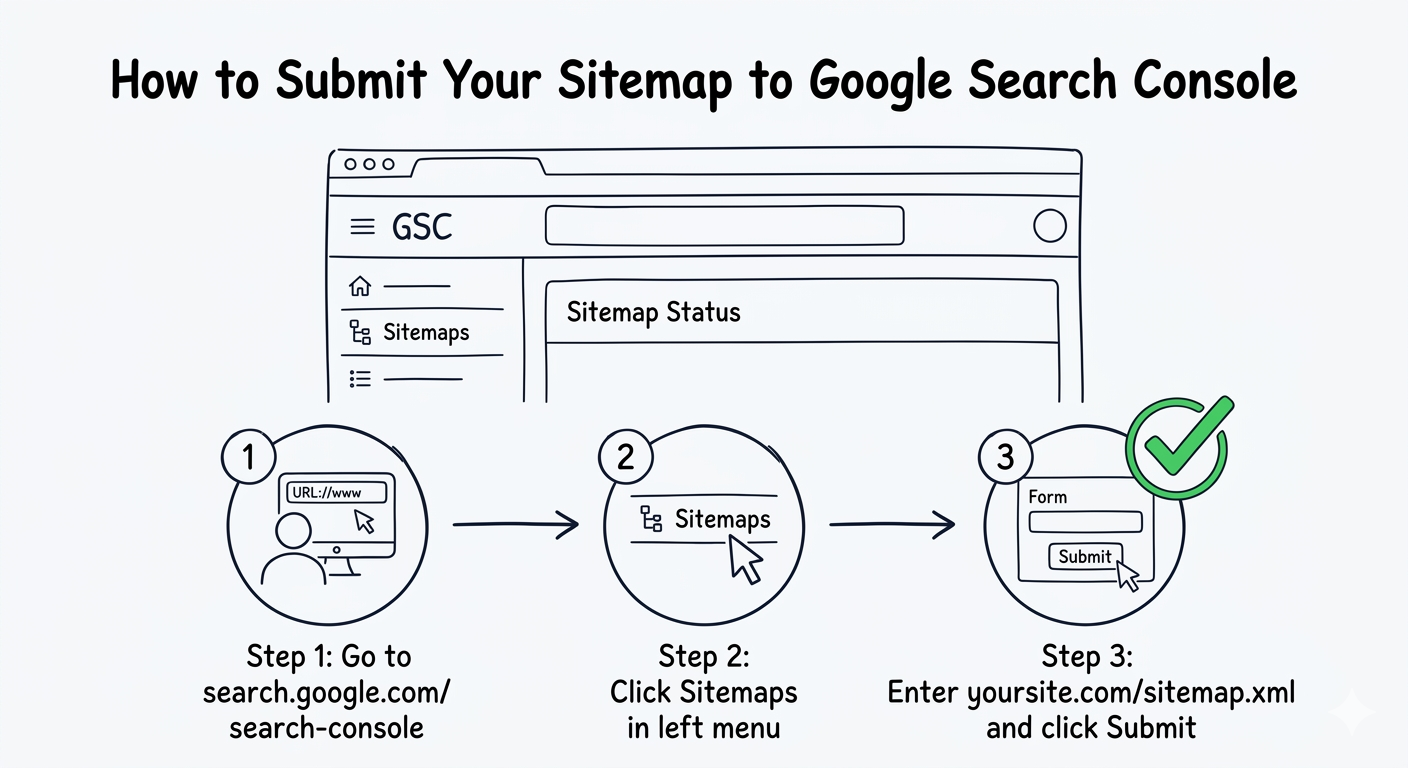
What to do: submit your sitemap to Google Search Console. This tells Google your site exists and which pages to crawl. Go to search.google.com/search-console, add your property, go to Sitemaps, and submit yoursite.com/sitemap.xml.
You can also manually request indexing for your most important pages by pasting the URL into the search bar at the top of Search Console and clicking Request Indexing.
Reason 2 — Your site has no sitemap
A sitemap is a file that lists all the pages on your website and tells Google where to find them. Without one Google has to discover your pages by following links — which is slow and unreliable especially for new sites.
How to check: visit yoursite.com/sitemap.xml in your browser. If you see an XML file with a list of URLs your sitemap exists. If you get a 404 error you do not have one.
What to do: most website platforms generate sitemaps automatically. WordPress with Yoast SEO or Rank Math creates one automatically. Shopify, Wix, and Squarespace also generate sitemaps automatically. If you have a custom built site you need to create one manually or use a sitemap generator tool.
Once your sitemap exists submit it to Google Search Console.
Reason 3 — Your robots.txt is blocking Google
Robots.txt is a file that tells search engines which pages they are allowed to crawl. If this file is configured incorrectly it can accidentally block Google from crawling your entire site.
How to check: visit yoursite.com/robots.txt in your browser. If you see a line that says Disallow: / that means you are blocking all crawlers from your entire site.
What to do: change Disallow: / to Disallow: with nothing after it — this tells Google it is allowed to crawl everything. Only add specific paths to Disallow if you genuinely want to hide those pages from Google.
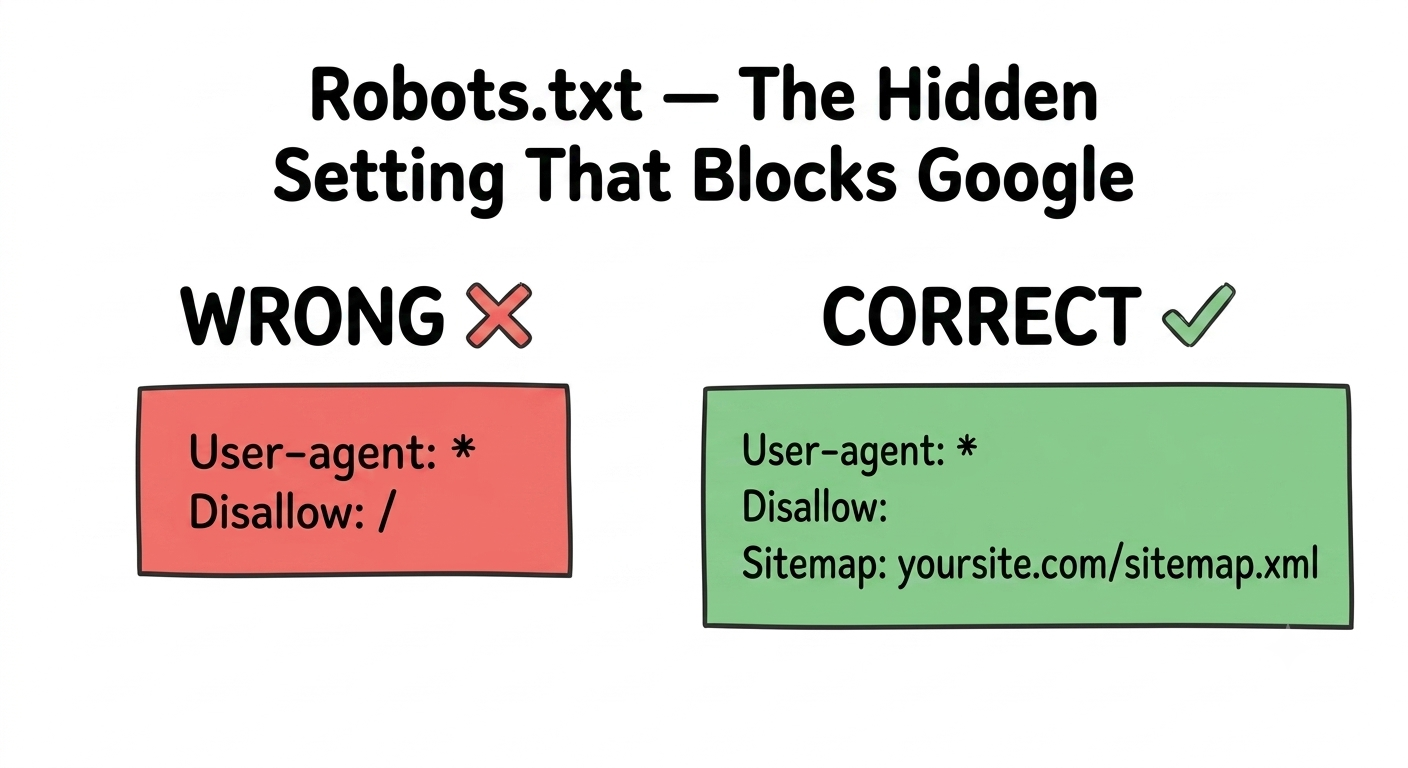
This is more common than you think. Website developers sometimes set Disallow: / during development to prevent Google from indexing an unfinished site — and then forget to remove it before launch.
Reason 4 — Your pages have no content Google can read
Google reads text. If your website uses JavaScript to display content and Google cannot execute that JavaScript it may see a blank page with no text to index.
This is common on heavily designed websites, single page applications, and sites that load content dynamically.
How to check: right click on your page and select View Page Source. If the source code shows mostly empty divs and script tags with very little actual text — Google may be seeing the same thing.
What to do: ensure your key content — headlines, descriptions, main body text — is present in the HTML source not just loaded by JavaScript. If you use a JavaScript framework like React or Next.js ensure server-side rendering is enabled so Google receives fully rendered HTML.
Reason 5 — Your title tags and meta descriptions are missing or weak
Even if Google has indexed your pages it may not be showing them for your target keywords if your title tags do not include those keywords.
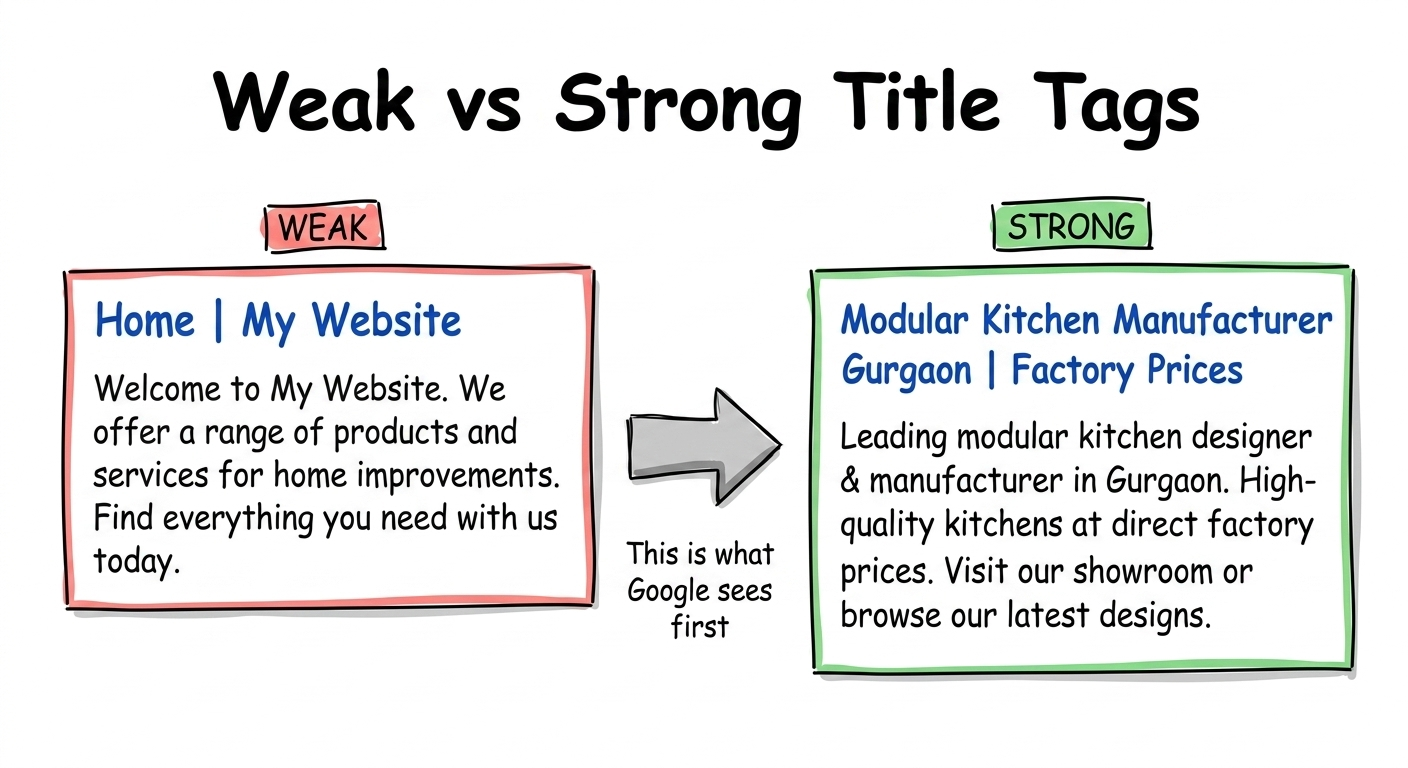
The title tag is the blue clickable headline on the search results page. It is the primary signal Google uses to understand what your page is about.
How to check: right click on your page and select View Page Source. Search for title. What does your title say? Does it include the keyword you want to rank for?
What to do: update your title tag to include your primary keyword near the beginning. Keep it under 60 characters.
Example of a weak title: Home | My Website
Example of a strong title: Modular Kitchen Manufacturer Gurgaon | Factory Direct Prices
We ran a visibility audit on a furniture manufacturer's website and found 48 out of 50 pages had duplicate or missing meta descriptions. Every blog post was showing the exact same description — telling Google nothing specific about each individual page. That alone was suppressing rankings across the entire site.
Reason 6 — Your site has no authority yet
Even if everything is technically correct Google may not rank your site highly if it does not trust your domain yet.
Domain authority is built over time through backlinks — other websites linking to yours — and through consistent publishing of quality content. A brand new website with no backlinks will struggle to rank for competitive keywords regardless of how well optimised the pages are.
What to do: do not try to rank for highly competitive keywords immediately. Start with specific low competition keywords — long tail keywords with 3-5 words that describe exactly what you offer in a specific location or niche.
For example instead of targeting "modular kitchen" target "modular kitchen manufacturer gurgaon under 2 lakh" — far less competition and far more likely to rank for a new site.
Publish content consistently. Each new page is an opportunity to rank for a new keyword and to build authority over time.
Reason 7 — Your heading structure is broken
Google uses your heading tags — H1, H2, H3 — to understand the structure and topics of your page. A page with no H1 tag or multiple H1 tags sends confusing signals about what the page is about.
Every page should have exactly one H1 tag that contains your primary keyword. Supporting sections should use H2 tags.
How to check: right click on your page and select Inspect. In the elements panel search for h1 — how many do you see? Is it exactly one?
What to do: ensure every important page has exactly one H1 tag that clearly states what the page is about and includes your target keyword.
We ran ClimbRK on a college website and found 23 pages with no H1 tag at all and 17 pages with multiple H1 tags. These structural issues were quietly suppressing rankings across the entire site — and the site owner had no idea.
Reason 8 — You are targeting the wrong keywords
Your site might be indexed and technically healthy — but if you are targeting keywords that nobody searches for you will never get traffic.
Or you might be targeting keywords that are so competitive — like "SEO" or "restaurants in India" — that it is practically impossible for a new or small site to rank for them.
What to do: use a rank checker to see where you currently rank for your target keywords. If you are ranking at position 87 for a keyword you care about — you are close but need specific fixes. If you are not in the top 100 at all — Google does not think your page is relevant for that keyword yet.
Check where you rank right now
Enter any keyword and see your exact position — plus why you rank there and what to fix.
Open resource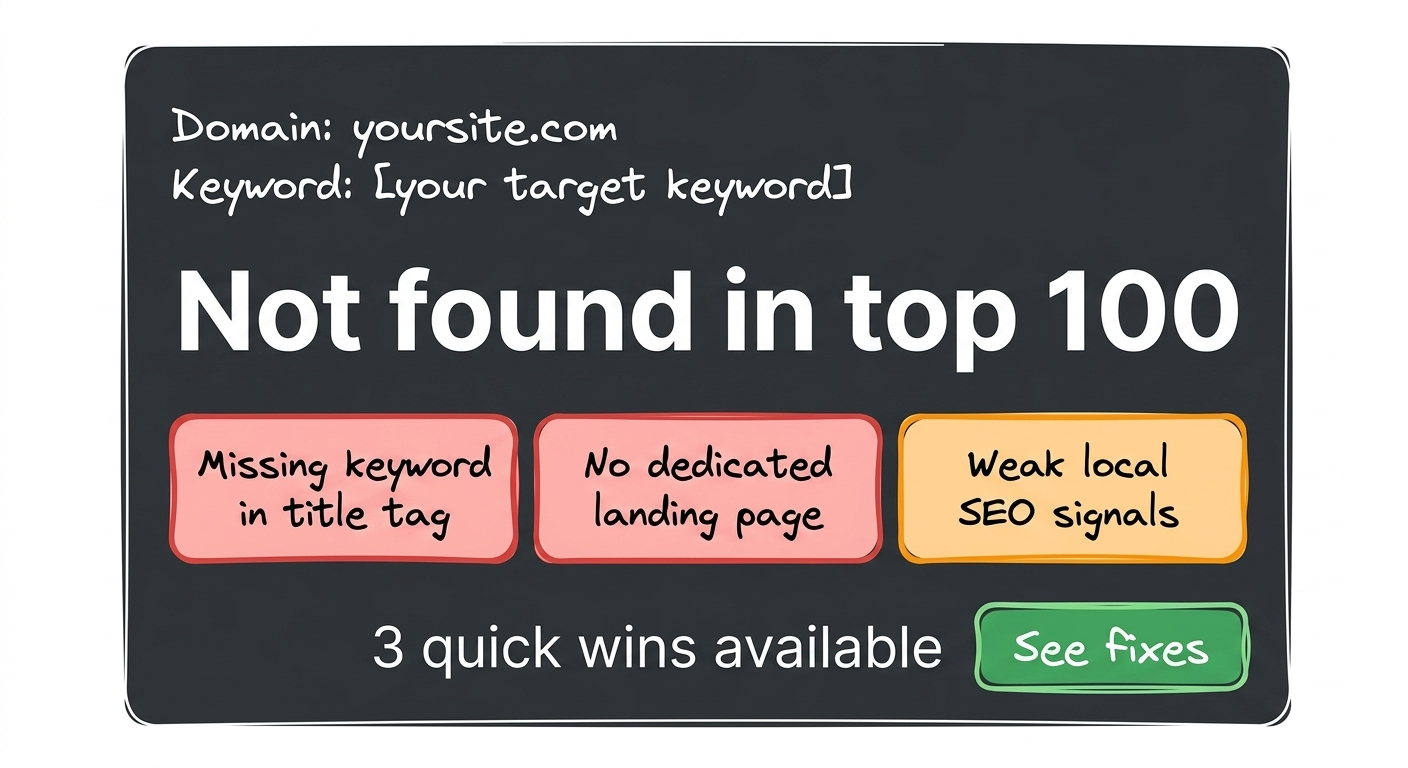
How to find out exactly what is wrong with your site
The fastest way to find out why your site is not showing on Google is to run a full visibility audit.
A visibility audit crawls every page on your site and checks each one for:
Missing or duplicate title tags — the most common reason pages do not rank for target keywords.
Missing or weak meta descriptions — affects how many people click your result even when you do rank.
Broken heading structure — missing H1 tags confuse Google about what your page is about.
Sitemap issues — pages missing from your sitemap that Google may never find.
Robots.txt conflicts — rules blocking Google from important pages.
Orphan pages — pages with no internal links pointing to them that Google cannot discover by following links.
Content freshness — pages with old year references that may be losing rankings to fresher content.
Run your free visibility audit
See exactly what is stopping your site from ranking — with copy paste fixes for every issue.
Open resourceThe most important thing to remember
Google not showing your website is almost never a permanent problem. Every reason in this guide has a fix. Most of them are simple enough to implement in an afternoon once you know what to look for.
The challenge is that most website owners have no way to see these issues without a proper audit. They know their site is not ranking — they just do not know why.
That is exactly what ClimbRK is built to solve.
Check your site for free
Free visibility audit — no card needed. See your score, your issues, and exactly what to fix.
Open resource